 YouTube Deep Summary
 Extract content that makes a tangible impact on your life
📝 Transcript (134 entries):
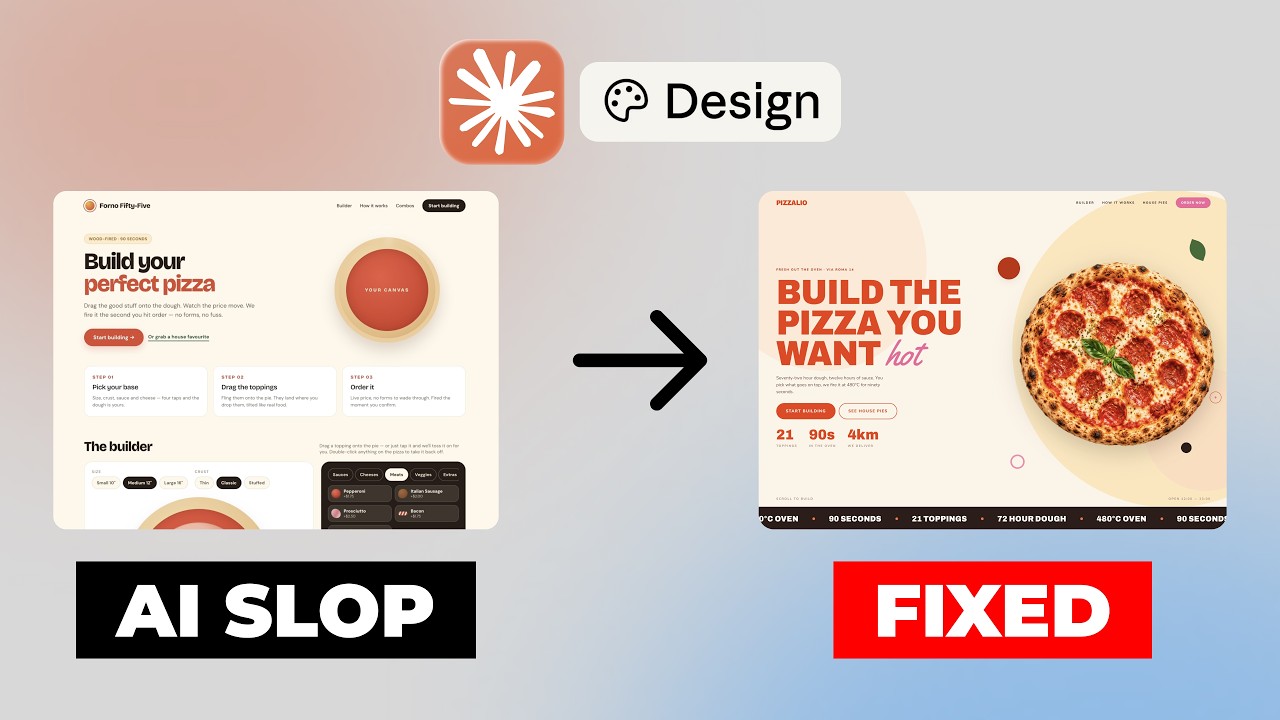
This is what Claude Design generated on the first
try. And this is where we ended up. Same AI, same project. And the difference wasn't just
a better prompt. It was the design process. In this video, I will show you exactly how I took
a generic AI generated landing page and turned it into a polished professional design. We'll
create a reusable design system, use it to refine every section of the website, bring everything
into Claude Code to build the final website, and then reuse that same design system to generate
brand assets like menu and social media posts.
If you ever felt that AI generated websites
all have the same generic look, this workflow will completely change how you design with AI. So,
let's get started. All right. So, I have my Claude open. Currently, I'm using just regular Claude
and chat. And here, as you can see, I built a huge prompt for my next project that actually
I want to show you how to do in this uh video.
And basically, because I'm lazy and I don't want
to like write this whole huge prompt by myself, I told Claude in a few words what exactly
I want to build. and I asked it to create a detailed prompt and MD file. After my prompt, I
got this MD file with uh a detailed description of how this project should look like and how it
should work. I've downloaded the MD file. I want to go to design mode and since I'm using a desktop
app, my claw design is already available here on the bottom. So I just click on it and it opens
a new window and I'll just write implement and I will use my markdown file that I got previously
and I will be using Opus. As you can see uh the latest version of Claude Design includes different
templates. So now we can create documents, animations, UI mockups, research, resume, all of
those things. This is super crazy and I tested them out and the results are pretty good. But for
this demonstration, we're not going to be using any templates and we're not going to be using
a design system. So this is important because I want to see what we're going to get just from
one prompt in markdown file and then we'll work with the design system a little bit later and I'll
be using model Opus 5 for this task. So let's run and let's see what we're going to get. All right.
So, we got the results and for most of the people probably it would look okay. Uh, but if you have a
designer's eye or you're a professional designer, you will probably understand that this looks a
bit generic. Uh, we have some SVG kind of style illustrations. But let's see how it works. So,
I'll click start building. And here I can choose the size of the pizza. And we can see that the
calculator is working. Let's have the large one.
The crust is not changing. Okay. But let's add
some sauce. Let's add garlic. Oh, nice. Yeah, this is pretty cool. And what about cheese? Can
we like drag drag and drop? No, we can't do it.
And for the meat. Oh, yeah. This is pretty
cool. Yeah, we can we can put the pepperonis and bacon. This is funny. And we can like
put some grilled chicken, Italian sausage.
Yep. I think this looks good. And for the veggies,
let's put some artichok. Oh, yeah. It looks good.
All right. So, let's click preview. Oh,
nice. It has this sort of like um review your pizza. And we can confirm the new one.
So, well, not exactly what I was expecting, but I think it looks fine. What we can do now we
can update it and make it look more professional in terms of design to make it more interesting
and for that I'll will go to Pinterest and in Pinterest uh I already searched for fun website
design and here what I got so of course you can go to Mobbin or any other inspiration tools and
what I need to find I need to find an image of a website that I will use for the inspiration we're
not copying anyone's work we're just using it for inspiration ation and I kind of like this one. I
like this typography. I think this one looks good or even this one. This one is nice. So I will just
download it. So now what I want to do, I want to create a design system to update my project. And
for that I need to go to back to my project. And I guess this is like the most powerful thing that
exists in Claude Design because you can create really cool apps and web websites for outside
of the claw design. And I think they it works pretty good. For example, like I love cursor
and it worked like 80% of my time in Cursor.
But in Claude Design, the most powerful tool
I believe is this design system creation tool. So let's try to create one. We select this design
system over here using this dropdown and we click on this little icon create design system. And here
in this little window we'll use create here. Uh in this popup we can actually connect our GitHub
project. For example, if you have an existing project that you want to use it and create the
design system from it, this will be really useful.
Or you can link a code base from your computer
or Figma file or you can use visual assets. Of course, I will be using visual assets. So I will
just drag and drop this image over here. And here we can um actually give it the name of our project
and I want to call it it's alio. Let's do it this way. Let's create and let's generate right
now. All right. So it's done. And as you can see this design system is so huge. It has a lot
of things in it. So that's why I'm saying that design systems from Claude Design are perfect
and the best ones. And as you can see there is like the navigation. But let's just scroll and we
can see there is some information about the fonts.
Uh we can see that information about the numbers.
This is the the structure of the design system. And it even has these sort of like references and
ideas. And this looks already super cool, right? The colors, blobs and shapes, the word mark. This
is like the logo, brand colors. It's pretty good.
Different animation, different elevations
radiuses. This is like super cool. This would take me like a few days to build. Uh if I could
do it in Figma for example. And here you can see even the landing page sort of like style.
And even now it looks much more interesting, right? Let's go back to our file that we worked on
earlier. So let's open this. It's a website. And as you can see, I'm already running my limits. But
let's try see what's going to happen if we apply the newly designed design system. And for that
we need to press this little plus icon over here and pick the design system. And now we need to
use the design system over here, our pitalio.
And let's click done. And we'll write a
prompt. So this is going to be our prompt. Update the website design layout using
design system. Hero screen should be full uh viewport. Now I want to have it like not not just
taking half of my page but to be the full one.
Add some parallax on scroll animations with pizzas
and ingredients. So this is what I want to do. And here you can see I hit my limit and this
sucks. And I just wanted to take this moment to remind you that if you want to learn more about
clo design or AI design workflows, be sure to check out the links in the description below to my
one-toone sessions and subscribe to my newsletter.
All right, so it's done and we can see the
updates. Well, first of all, we can see the full screen layout. We can see the custom cursor, very
popular. Uh, and now it looks even better. Uh, first of all, we can see the parallax. We can play
around with it in tweaks. So we can use like two
and we can see the movement uh faster. Uh
of course again we can change the colors. But I like this set. Also added this horizontal
scroll section. I love this part where it's all on tomato color background. Uh pretty cool. And
here's some animations. And here we can see like the the calculator and it is is looking much
better and we can add everything as we used to.
So this is pretty cool. We see some animations for
text and this one is like super cool full screen footer. One more thing that I did um I
went to chat GPT and created some images really fast. These are images that I got
generated. So what I want to do I want to add these three images of people inside of our
design layout. And also I want to replace this um illustration of pizza with a real photo of
a pizza. So let's see what's going to happen.
All right. So it's almost done. And as you
can see we have some really nice updates. Uh we have a pizza larger much larger. The parallax
is working and the images look much better. We can see the slides animations over here which are
pretty nice. So this is our builder and these animated as well. We can see this guy now.
Really nice here. And the footer is pretty big.
Uh in any case, we can go and fix this. But
remember that cloth design takes a lot of tokens. And what I recommend to do, I recommend
you to if you're happy with like the layout, the design layout. And I think this looks
much better than the first uh layout that we got that was super generic. But again, let me know
in the comments what you think about this.
We can send this to our claude code. Let
me go to let me show it again. Uh share more formats and apps. And here we can choose
cloud code and we can send it to cloud code. So it's a local agent or we can have a web session
that is going to be on our cloud or in our GitHub
or we can save it locally or we can download it as
a zip file and open it for example in cursor. So we just copied it and now we go to our cloud and
we go to cloud code and let's create a new folder. Here it is. So this is our local folder I just
created. I pasted the prompt that I got from cloud design and the only thing that I want to go for
set 5 because uh I don't want to spend any more tokens on this and it should be fine because we
have the designs in the clo design. So, let's wait for Claude code to create this landing
page and it's going to be much cheaper.
But for now, I'm going to go back to my cloth
design. I want to create a menu design layout and I'm using my design system here. Um, and what
I can use again, I can use something like uh let's use just document. Let's run the prompt. And it
should create a menu in the same style that we had here. It asks me different questions. And
what I want to do, for example, I want to have a single page. I want to have pizzas, drinks, and
salads. How many items? Let's use 20, for example.
So, let's use no photos, only styles. Let's do the
draft. And that's it. Let's send. All right. So,
the menu is ready. Look at it. It's beautiful. Uh
it's really simple one, but it is using our design system and it is similar to the website that we
have. So I believe this is super cool. Uh and it saved me a few hours of work of course. And what
else we can do? So basically now we have a website for this project. We have a menu. And now what
we can do, we can do a few uh Instagram posts.
Uh let's put this image and create a few Instagram
design layouts using photo attached and let's run and see how it's going to work. Again, we're
using the design system of our project. So, so it should be in the same style as the menu and
the website. And here are several posts from the design point of view. They're really simple and uh
I would really work with them a little bit more.
But again for most of the people who are not
designers I believe this is going to be like huge. This is super cool. And the most important
thing is that we have our design system consistent everywhere in our posts in our website and now our
menu. And now let's see what we got with clo code.
We turned our designs from Claude Design into code
right now. and I did some um up updates with it because I wanted to like fix and polish the hero
section. Uh but other than that, let's preview it in our browser. So, as you can see, um this
is the file that I got and this is the project and this is the folder and this is the project's
folder. So, as you can see, everything is in code now. Uh and yep, so it looks pretty good. We
see the slide animations. We see the parallax
and uh the images are looking good. This is our calculator. Of course, I would rather change these
SVG illustrations to photographs. But for now, it's fine. So, everything is working. We can place
an order. So, looks pretty good. The images are nice. Slide animations here. And this huge footer
is here. Thank you so much for watching this video. I hope now you know how to use Claude
Design to generate professional look designs for your websites and [music] brand assets. If you
want to learn more about cloud design and other AI design tools and workflows, be sure to subscribe
to my channel if you haven't already and like the video if you like it. This is super important
to me and I'll see you in the next one. Bye-bye.